
EBW HikaShop BotGuard stops search engine crawlers and other bots from filling your HikaShop with thousands of empty guest carts. The add-to-cart button used by your customers keeps working unchanged. This manual covers version 1.0.
- What the plugin is for
- Requirements and installation
- First steps
- The modes
- Rate limit
- Log and statistics
- License and updates
- Privacy
- Questions and answers
What the plugin is for
HikaShop stores carts in the database, including those of visitors without a customer account. The HTML of every add-to-cart button also contains an ordinary link that adds the same item to the cart. It is meant as a fallback for browsers without JavaScript.
Crawlers request every link on a page, including this one. Because they do not accept cookies, HikaShop does not recognise them and creates a new cart with every request. In one affected shop, 341 such requests arrived within two and a half hours, 340 of them without a cookie. In the same period real customers used the button seven times.
HikaShop can delete old carts automatically. That also removes the carts of regular customers who order from them again and again.
The plugin tackles the cause. It recognises the request made through the link and no longer lets it reach HikaShop unchecked. A click on the button takes a different technical route (POST instead of GET) and is never affected, whatever the setting.
| Who | Without the plugin | With the plugin |
|---|---|---|
| Customer clicks the add-to-cart button | Item is in the cart | Item is in the cart |
| Customer follows an add-to-cart link, for example from a newsletter | Item is in the cart | Brief intermediate page, then the item is in the cart |
| Crawler requests the link | New cart in the database | No cart, the request appears in the log |
Requirements and installation
You need Joomla 5.2 or later (including Joomla 6) and HikaShop. The Joomla plugin “Behaviour – Backward Compatibility” is not required.
- In the Joomla backend open System › Install › Extensions.
- Drag the file
pkg_ebwhikabotguard_v1.0.2.zipinto the field or select it with Browse for file. - Wait for the message that the installation was successful.
The package contains two plugins: BotGuard itself and the EBW License Client, which checks your license key and unlocks updates. After installation BotGuard is enabled and set to Observe. In this mode nothing is blocked.
If you use the predecessor “EBW HikaShop BotGuard” 0.2.x (plugin botguard), disable or uninstall it first. Otherwise it keeps blocking with error 403.
First steps
Start with Observe and only switch on protection once you can see the crawlers in the statistics.
- Open System › Manage › Plugins and search for “BotGuard”.
- Click EBW HikaShop BotGuard.
- Leave the mode on Observe and wait a few hours, or a day for small shops.
- Open the Log tab. The row “Observed only” counts the requests made through the link. If the “Session” column almost always says “No”, these are crawlers.
- Go back to the first tab and set the mode to Confirmation page.
- Click Save.
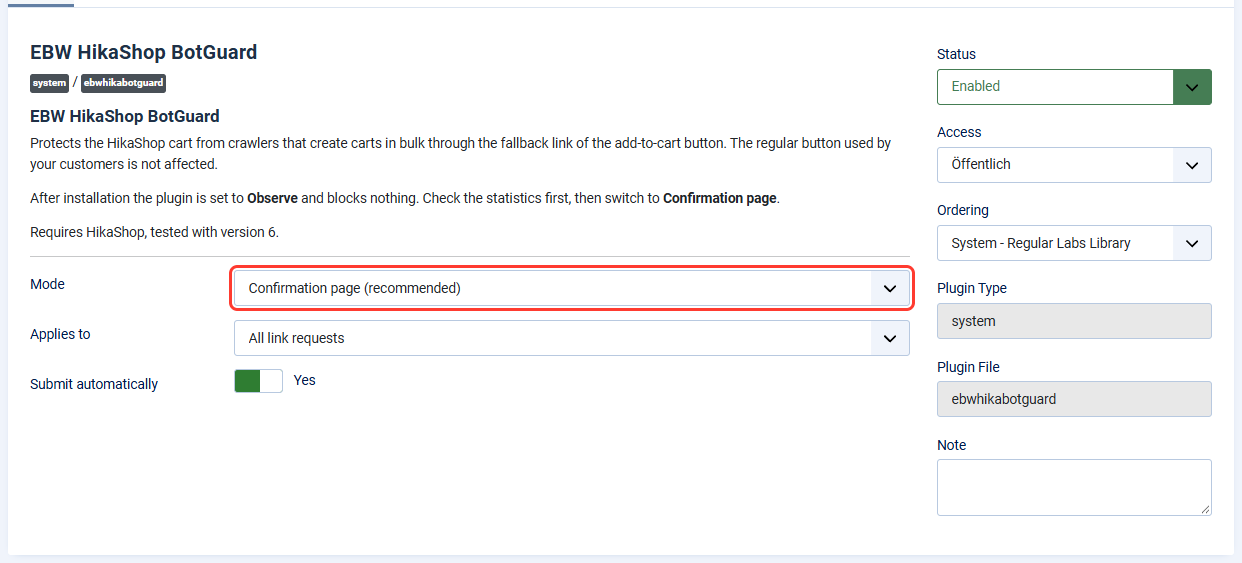
From now on, link requests no longer create carts. Check the log again after a day: the requests now appear under “Confirmation page”, and the row “Passed” shows your customers’ purchases through the button.
The modes
The mode determines what happens to a cart request made through a link. For most shops Confirmation page is the right choice.
| Mode | What the requester sees | Suitable for |
|---|---|---|
| Observe | Nothing, the shop behaves as it would without the plugin | The first hours after installation |
| Confirmation page | A page asking whether the item should be added to the cart | Permanent operation |
| Redirect | The product page or another target of your choice | Shops that do not want to show an intermediate page |
| Block | The error message 403 | Shops without add-to-cart links in newsletters or adverts |
Confirmation page
The page names the item and asks whether it should be added to the cart. Only a click on Yes, add to cart adds it; after that everything continues as it does after the regular button.
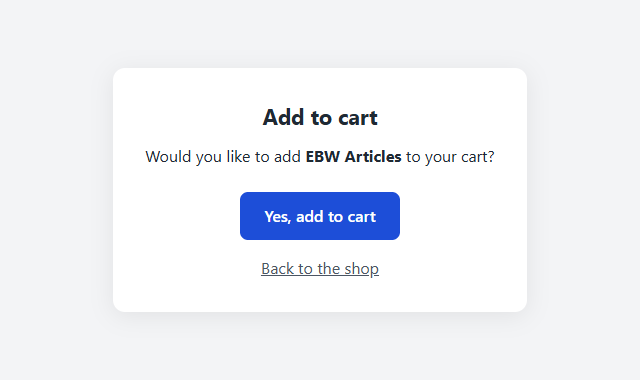
With Submit automatically (enabled by default) the page submits itself in a browser. Your customers then see it only for a moment, and links from newsletters keep working. A crawler does not execute this and stays on the page. If a visitor has JavaScript switched off, a single click on the button is enough.
If the request contains no item, for example because a crawler fetches an incomplete address, there is nothing to ask. Such requests go straight to the home page.
Redirect
The request is redirected and the item is not added to the cart. You can choose the target: the product page of the item, the home page, a menu item or a custom address. The custom address must be on your website, for example /shop. The plugin does not accept external addresses and redirects to the home page instead.
Block
The request is answered with error 403 and a short notice. Customers arriving through an add-to-cart link from a newsletter see the error message as well. Choose this mode only if you do not use such links anywhere.
Applies to
This setting appears as soon as the mode is no longer set to Observe.
- All link requests (default): every request made through the link is handled.
- Only requests without a session cookie: visitors who are already browsing your website are left alone entirely. Only requesters that bring no cookie are handled. These are usually crawlers, and only for them is a new cart created every time.
Rate limit
The rate limit restricts how often one sender may add items to the cart within a short time. It is disabled by default and meant as an emergency brake: for the case that a single internet address sends cart requests in large numbers, for example a bot that does not follow the link but sends requests like the button does.
Requests through the link and requests without a session cookie are counted. The add-to-cart button of a visitor who is already browsing your website is not counted. A customer who adds many items one after another is therefore never limited.
- In the plugin options open the Rate limit tab.
- Set Enable rate limit to Yes.
- Enter the Maximum requests and the Period in minutes. The default is 60 requests in 5 minutes.
- Click Save.
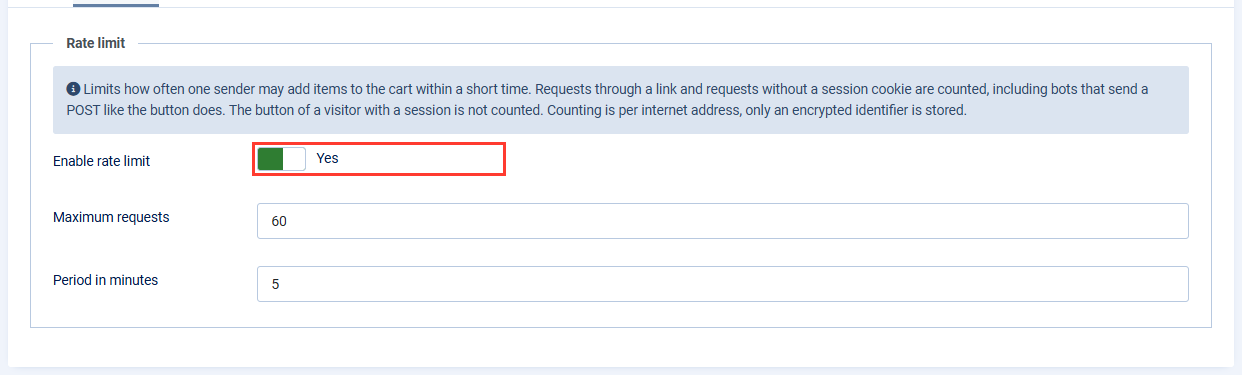
Anyone exceeding the limit is turned away until the period has passed. The shop shows a notice asking to try again in a few minutes. Counting is per internet address. If many of your customers order from the same company network, they share one address. Choose a generous limit in that case.
The rate limit does not help against crawlers that spread their requests across many addresses. That is what the mode is for.
The rate limit works independently of the mode, including Observe.
Log and statistics
The Log tab shows what the plugin has seen and done. You do not need to open a file.
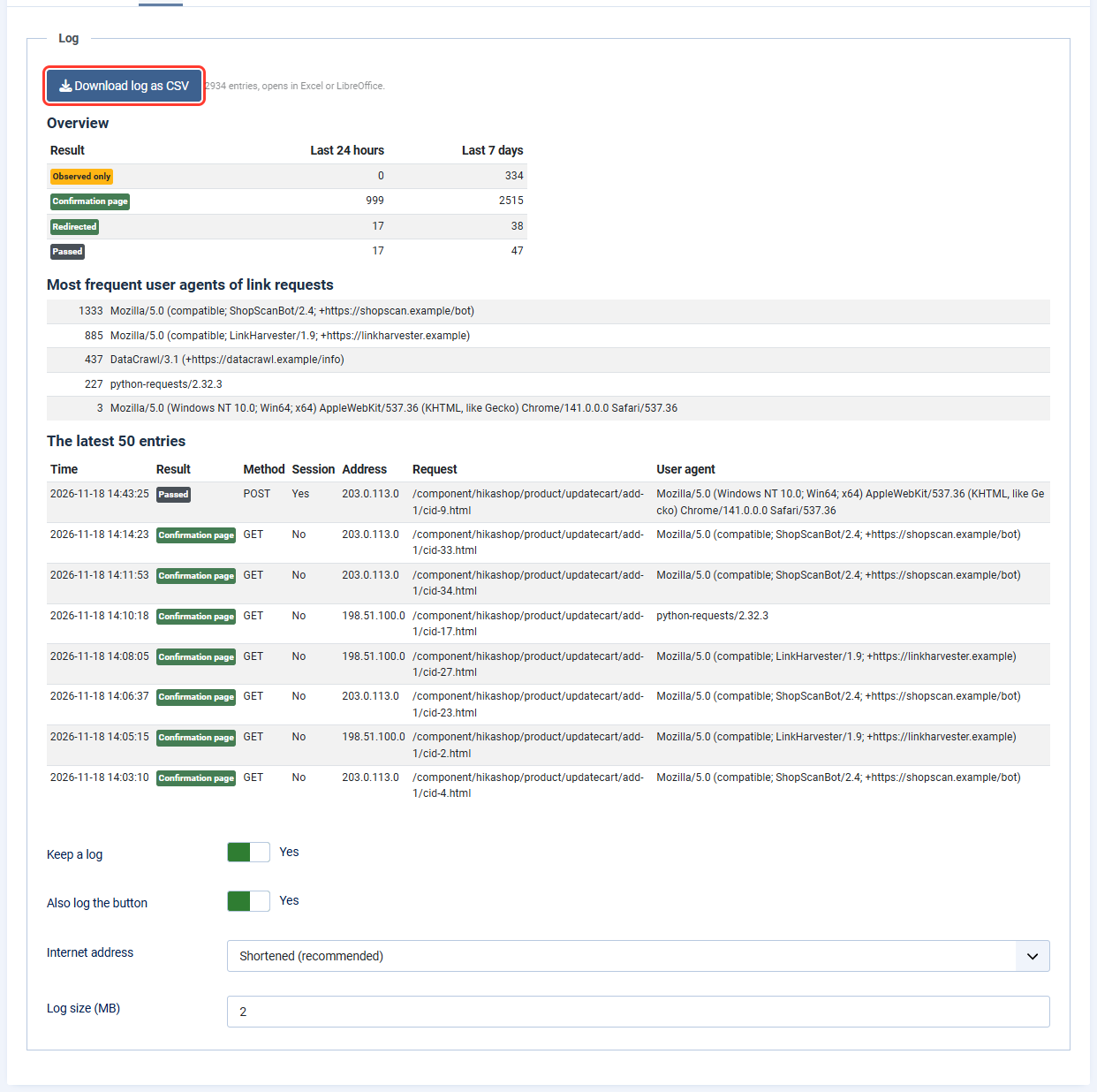
The statistics have three parts:
- Overview: number of requests per result in the last 24 hours and the last 7 days.
- Most frequent user agents of link requests: the five user agents the requesters identified themselves with most often. This shows which crawlers are active.
- The latest 50 entries: time, result, method, session yes or no, internet address, requested address and user agent.
Above the statistics you find the button Download log as CSV. It delivers all log entries as a file that opens in Excel or LibreOffice. In addition to the columns of the table it contains the reason for the decision, the product ID and the referring page. The button only appears while the plugin is enabled.
| Result | Meaning |
|---|---|
| Observed only | Link request in Observe mode, nothing was prevented |
| Confirmation page | The requester received the intermediate page |
| Redirected | The request was redirected |
| Blocked | The request was answered with error 403 |
| Rate limited | The rate limit rejected the request |
| Passed | The request reached HikaShop. These are your customers’ clicks on the button. |
The settings are below the statistics:
- Keep a log: switches the log on or off. Without a log the statistics stay empty.
- Also log the button: includes your customers’ regular clicks. This shows the ratio of customers to crawlers.
- Internet address: do not store, shortened (default) or full.
- Log size: 1 to 20 MB, 2 MB by default. When the limit is reached, the oldest entries are dropped.
The file is in the log folder of your Joomla installation and is called ebwhikabotguard.log.php. It cannot be read through a browser.
License and updates
The plugin works in full without a license key. The key unlocks updates.
- In the plugin options open the License tab.
- Enter your key. It has the form
EBW-HBG-XXXX-XXXX-XXXX-XXXXand is in your order confirmation. - Click Save. The license status below shows whether the key is valid.
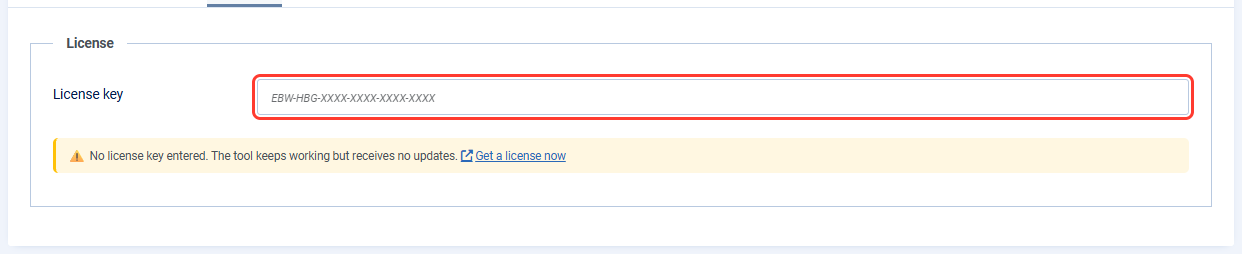
With a valid key, new versions appear under System › Update › Extensions like those of any other extension. Without a key the backend shows a notice and updates cannot be downloaded.
If you have an All-Inclusive license, enter the master key once in the plugin “EBW License Client”. It then also applies to BotGuard.
Privacy
The plugin sets no cookies and sends no visitor data to third parties. It stores two things on your own server.
| What | Where | Content | How long |
|---|---|---|---|
| Log | Log folder, ebwhikabotguard.log.php |
Time, result, requested address, referring page, user agent, internet address depending on the setting | Until the configured size is reached |
| Rate limit counter | Temp folder, ebwhikabotguard_rate.php |
Hashed identifier per sender and timestamps | For the duration of the configured period |
With the setting Shortened the last block of the internet address is removed. Crawler networks remain recognisable, individual visitors do not. The full address is personal data. Choose Full only if you need it, and mention the storage in your privacy policy.
The rate limit counter only exists while the rate limit is enabled. The internet address cannot be derived from the identifier.
Questions and answers
Do my customers notice the plugin? No. The add-to-cart button works as before. Only visitors arriving through a direct add-to-cart link see the intermediate page for a moment in Confirmation page mode.
Does the plugin delete the carts that are already in the database? No. It prevents new ones. An old bot cart cannot be told apart reliably from that of a real visitor, so the plugin does not clean up by itself. You continue to manage existing carts in HikaShop.
The statistics stay empty. Why? Check that the plugin is enabled and Keep a log is set to Yes. The log folder of your Joomla installation must be writable. If both are fine, nobody has requested the cart through a link since the installation.
The statistics show link requests with “Session: Yes”. Are these crawlers too? Usually not. These are visitors without JavaScript or requests through links on your own website. To leave these visitors alone, set Applies to to Only requests without a session cookie.
The requests do not decrease although the plugin is protecting. Is that a fault? No. The plugin does not keep crawlers from making requests, it only prevents the effect. What matters is that no new guest carts are created in HikaShop.
Does the plugin work with page caching and security extensions? Yes. The intermediate page is never cached and is closed to search engines. If a security extension blocks a crawler beforehand, that request does not appear in the log.
Who do I contact with questions? EasyBay-Web support at
The images show sample data. The crawler names and internet addresses are invented.
